Physical Address
304 North Cardinal St.
Dorchester Center, MA 02124
Physical Address
304 North Cardinal St.
Dorchester Center, MA 02124
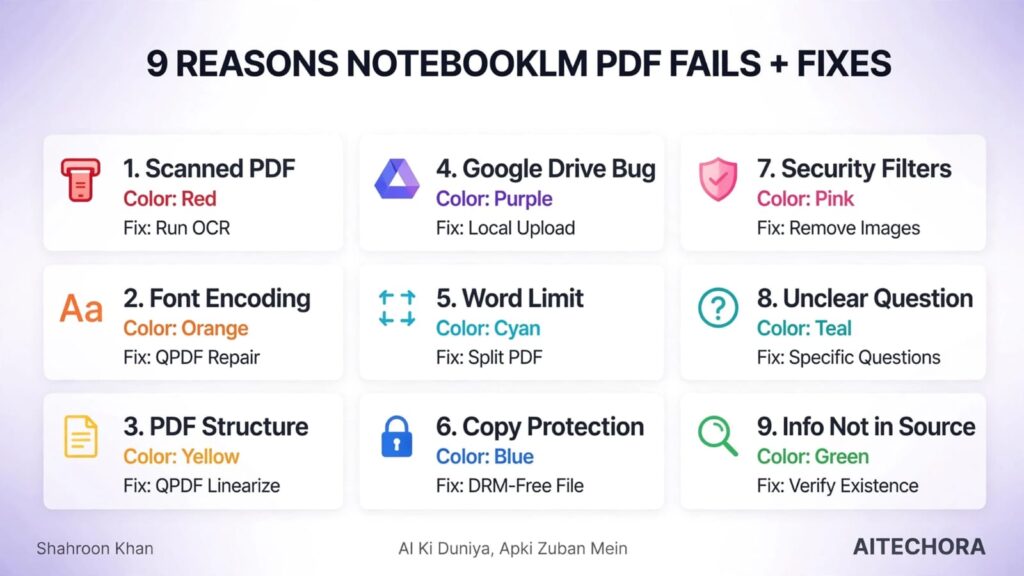
NotebookLM PDF Se Galat Answer Kyu Deta Hai ? NotebookLM PDF se galat answer ya “I don’t have information about this” isliye deta hai kyunki uska PDF parser kuch specific file types ko sahi se nahi padh paata. 9 main reasons hain: scanned/image-based PDF (no text layer), non-standard font encoding wale PDFs (jaise CJK — Chinese/Japanese/Korean), corrupt ya malformed PDF structure, Google Drive se aane wale sync/labeling glitches, file size ya word limit exceed hona, copy-protected PDFs, safety filters, unclear question phrasing, aur simply information source mein na hona. Fix: scanned PDF pe OCR run karo, PDF ko Markdown mein convert karo, aur specific, precise questions poocho.
Note: NotebookLM apna internal parsing/backend logic publicly disclose nahi karta. Is article mein diye gaye reasons observed patterns aur Google ke official troubleshooting docs par based hain, reverse-engineered internal code par nahi.
Socho — aapne apna research paper, book, ya assignment PDF ke roop mein NotebookLM mein upload kiya. NotebookLM ne source “ready” show kar di. Phir aapne sawaal poochha — aur jawab galat aaya. Ya toh “I don’t have information about this” bol diya. Ya kuch aisa jawab diya jo PDF mein tha hi nahi.
Mere saath bhi aisa hua tha.
Maine ek scanned academic paper upload kiya. NotebookLM ne accept kar liya. Source “ready” show kar diya. Phir maine poochha — “What is the main conclusion of this paper?”
Jawab aaya — “I don’t have enough information to answer this question.”
Maine socha — “Yeh Google ka AI hai, kitna smart hai. Phir kyun nahi padh pa raha?”
Maine 5 baar alag-alag tarah se sawaal poochhe. Har baar same jawab — “I don’t have information.”
Phir mujhe pata chala — problem AI mein nahi, PDF mein thi.
NotebookLM PDF Se Galat Answer Kyu Deta Hai NotebookLM ka PDF parser specific conditions mein fail ho jaata hai. Aur ye fail kab hota hai, samajhna bahut important hai — kyunki agar aapko ye samajh nahi aaya, toh aap NotebookLM ko dosh dete rahenge, jabki galti aapki file ki hai.
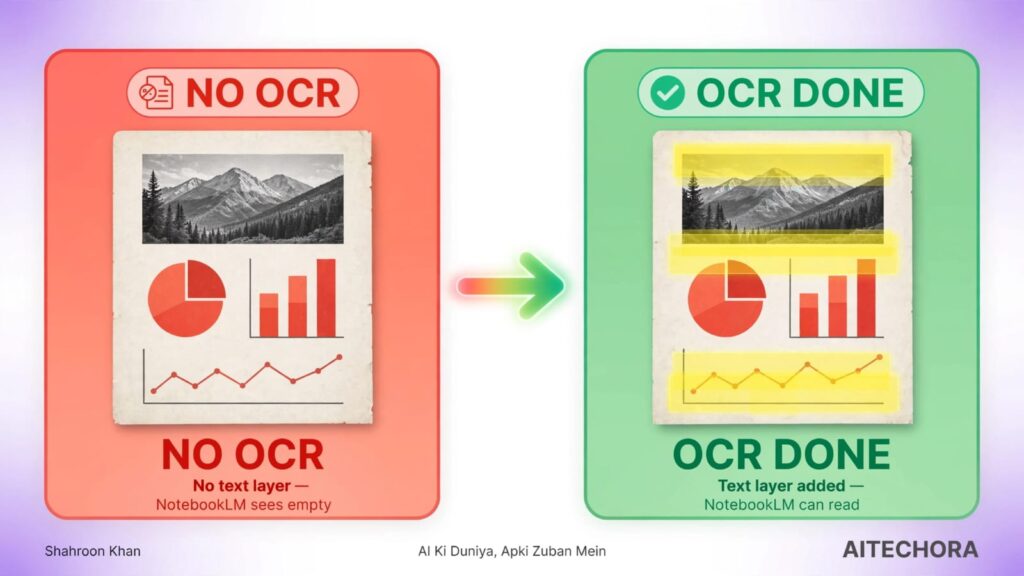
Analogy: Jaise aap kisi ko handwritten letter de rahe ho jo wo read nahi kar sakta — kyunki usne typed text padhna sikha hai. NotebookLM bhi digital text padh sakta hai, image text nahi — jab tak aap OCR run nahi karte.
Problem:
Sabse common reason — aapki PDF scan hai, digital text nahi. NotebookLM ka parser text layer dhoondta hai. Agar nahi hai toh wo “empty” treat karta hai.
NotebookLM image-only PDFs pe automatically OCR run nahi karta — Google ke apne troubleshooting docs bhi confirm karte hain ki agar source mein readable text nahi hai, toh tool answer nahi de payega.
Real Example: Ek law student ne apne contract law notes ki PDF upload ki. Wo notes handwritten + scanned the. NotebookLM ne source accept kar liya. Student ne poochha — “What are the essential elements of a valid contract?” Jawab aaya — “I cannot find information about this in your sources.” PDF check karne par pata chala wo image-based thi, text layer nahi tha. OCR run karke, text layer add karke dubara upload kiya — ab sahi answer aaya.
| Tool | Command / How to Use |
| ocrmypdf | ocrmypdf input.pdf output.pdf — terminal command |
| Adobe Acrobat Pro | Tools → Scan & OCR → Recognize Text |
| Google Drive OCR | PDF upload karo → Open with Google Docs → OCR automatically run ho jaata hai |
| ABBYY FineReader | Professional OCR tool — best quality |
Check karo text layer hai ya nahi — PDF open karo aur Ctrl+F karke koi word search karo. Agar word milta hai toh text layer hai. Agar nahi milta toh scanned PDF hai.
Problem:
Chinese, Japanese, Korean (CJK) PDFs mein aksar aise fonts use hote hain jinki Unicode-mapping properly embed nahi hoti. Result: parser ke liye text extract karna mushkil ho jaata hai, aur output blank ya garbled aa sakta hai.
Real Example: Ek researcher ne Japanese research paper upload kiya. Poochha — “What is the main finding?” Jawab garbled ya blank aaya. PDF check karne pe pata chala font encoding non-standard thi, isliye text properly extract nahi ho paaya.
| Solution | How to Use |
| QPDF preprocessing | qpdf –stream-data=uncompress input.pdf output.pdf |
| Force font embedding | PDF export/generation ke time “embed all fonts” option select karo |
| OCR as fallback | Agar font encoding fail ho, OCR run karo (scanned PDF ki tarah treat karo) |
QPDF install karne ke liye: macOS pe brew install qpdf, Windows pe qpdf.sourceforge.io se download, Linux pe sudo apt-get install qpdf.
Problem:
PDF ka internal structure corrupt ya malformed ho sakta hai — jaise broken cross-reference table ya corrupted compression dictionary. Aise PDFs ko standard parsers reliably read nahi kar paate.
Real Example: Ek researcher ne government website se download ki hui report upload ki. Source accept ho gayi, par answer nahi aaya. PDF structure check karne pe malformed cross-reference table mili. QPDF se repair karne ke baad kaam karne laga.
qpdf –replace-input –linearize input.pdf output.pdf
Problem:
Kabhi-kabhi Google Drive se directly link kiye gaye PDFs NotebookLM mein galat file-type se label ho jaate hain — jaise PDF ko kisi doosre format samajh lena. Google ne is behaviour ka exact internal cause publicly document nahi kiya hai, isliye ise ek known glitch ki tarah treat karo, guaranteed bug nahi.
Real Example: Ek user ne apne Google Drive se PDF link kiya. NotebookLM ne source ko galat type se dikhaya. User confuse ho gaya ki PDF ko kisi aur format mein kyu dikhaya ja raha hai.
| Action | How |
| Local upload | PDF ko Drive se download karo, phir local file ki tarah upload karo |
| Direct link avoid karo | Drive link paste karne ke bajaye local upload prefer karo |
| Source type verify karo | Upload ke baad confirm karo ki NotebookLM PDF hi dikha raha hai |
Problem:
NotebookLM specific limits enforce karta hai. Agar aapki PDF limits cross karti hai, toh parser fail ho jaata hai ya partial content hi read hota hai.
| Limit | Value |
| Words per source | 500,000 |
| File size | 200 MB |
| Sources per notebook | 50 |
| Notebooks per account | 100 |
| Chat queries daily | 50 |
| Audio generations daily | 3 |
Real Example: Ek PhD student ne apni complete thesis (450 pages, 600,000+ words) upload ki. NotebookLM ne source accept kar liya, par answers incomplete the — kyunki word limit cross ho gayi thi.
| Solution | How |
| Split PDF | Large PDF ko chapter-wise ya section-wise chunks mein split karo |
| Tools | PDFsam, Adobe Acrobat, ya online PDF-split tools use karo |
| Separate upload | Har chunk ko alag source ki tarah upload karo |
Problem:
Copy protection enabled PDFs import hi fail ho jaate hain — NotebookLM ka parser content access nahi kar paata.
| Type | How to Identify |
| Owner password | PDF open karte waqt password maange |
| Print/copy restrictions | PDF open ho jaata hai, par copy nahi kar sakte |
| DRM protection | Adobe DRM, third-party DRM |
Real Example: Ek student ne ek purchased textbook PDF upload ki. NotebookLM ne source “failed to load” show kiya, kyunki file DRM-protected thi.
Copy-protected content ke saath kaam karte waqt sabse safe approach ye hai ki sirf wahi files upload karo jinke aap legitimately full rights rakhte ho (khud likhi, khareedi hui non-DRM copy, ya jinka aapke paas explicit permission hai).
DRM circumvention tools legally risky ho sakte hain — kai countries mein (including India, copyright law ke anti-circumvention provisions ke under) ye personal use ke liye bhi ek grey area hai, kuch cases mein clearly illegal. Ye article legal advice nahi hai — agar aapko doubt hai, apne region ke copyright law ka source verify karo ya kisi legal professional se poocho. Sabse simple, risk-free fix: publisher se DRM-free version request karo, ya sirf DRM-free content upload karo.
Problem:
NotebookLM ka safety filter trigger ho jaata hai — Google ke apne official FAQ ke mutabik, ye sensitive topics jaise violence, sexuality, ya obscenity pe apply hota hai, chahe wo historical ya academic context mein hi kyu na ho.
| Content Type | Notes |
| Medical images | Surgery photos, medical diagrams |
| Historical violence | War photos, historical accidents |
| Obscenity/Sexuality | Even in academic context |
| Hate speech | Even quotes in context of critique |
Real Example: Ek medical student ne surgery notes upload kiye jinme surgical images thi. NotebookLM ne source accept kiya, par jab student ne procedure ke steps poochhe, jawab aaya — “I cannot answer this question” — kyunki safety filter trigger ho gaya tha.
| Action | How |
| Sensitive images hatao | PDF se medical/violent images remove karo |
| Text-only PDF | Images hatao, sirf text rakho |
| Workspace admin option | Agar Google Workspace admin rights ho, filter settings check karo |
Problem:
Question too broad hai. NotebookLM aapke sources mein se sabse relevant info retrieve karta hai — agar question vague hai, toh galat chunks retrieve ho jaate hain.
Real Example: Ek user ne poochha — “What does this document talk about?” NotebookLM ne generic answer diya jo PDF ka sirf ek chhota hissa cover kar raha tha. Question specific banane ke baad — “What are the pricing tiers in the Pricing section?” — sahi answer mila.
| Weak Question | Better Question |
| “Summarize this document” | “What are the 3 main findings in the results section?” |
| “What is the meaning of this?” | “Explain the definition of ‘quantum entanglement’ from page 15.” |
| “Tell me about AI” | “What are the AI applications discussed in the ‘Use Cases’ section?” |
Problem:
NotebookLM answer nahi de sakta agar answer source mein hi nahi hai. Google khud confirm karta hai ki NotebookLM sirf uploaded sources ke content ke basis par answer deta hai — agar info missing hai, tool blank response degа, hallucinate nahi karega.
Real Example: Ek user ne poochha — “What is the author’s opinion about climate change?” NotebookLM ne jawab diya — “I cannot find information about this in your sources.” PDF check karne pe pata chala usme climate change ka mention tha hi nahi. Problem NotebookLM ki nahi, expectation ki thi.
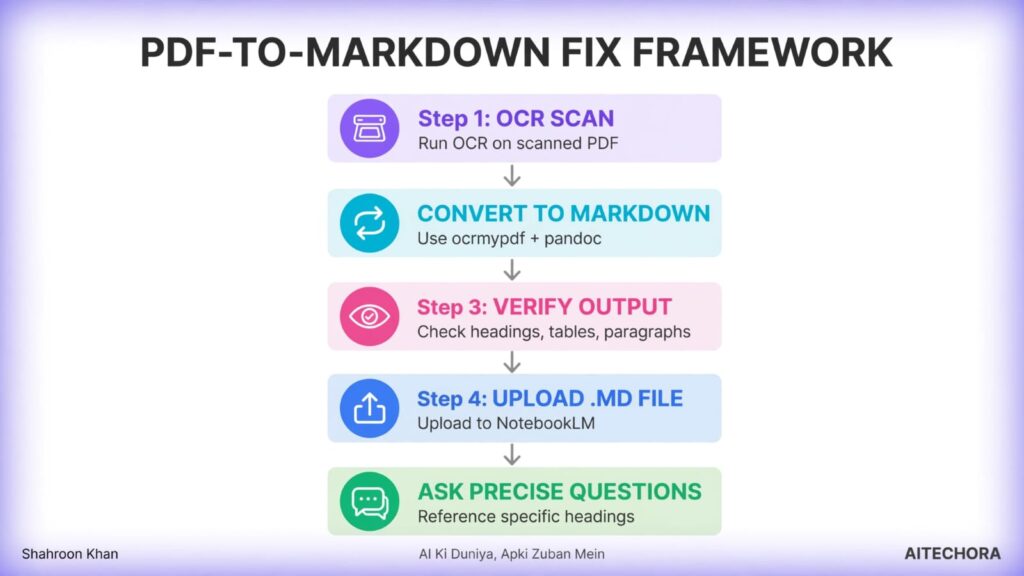
Best overall solution: PDF ko Markdown mein convert karo before upload.
| Advantage | Explanation |
| Structure preserved | Headings, lists, tables readable rehte hain |
| Predictable parsing | Jo aap dekhte ho, wahi model bhi dekhta hai — kam surprises |
| Scanned PDFs bhi solve | OCR-aware conversion pehle hi kar leta hai |
| Step | Action | Tool |
| 1 | PDF ko Markdown mein convert karo (OCR enabled) | ocrmypdf + pandoc, ya Adobe Acrobat export |
| 2 | Output skim karo — headings, tables, paragraphs check karo | Koi bhi text editor |
| 3 | .md file NotebookLM mein upload karo | NotebookLM upload |
| 4 | Reference by specific headings | “In the ‘Pricing’ section…” |
| 5 | Verify — quote maango | “Quote the exact passage you used.” |
| Symptom | Likely Reason | Quick Fix |
| “I don’t have information” | Scanned PDF / No text layer | Run OCR |
| Garbled text output | Non-standard font encoding (CJK) | QPDF repair or OCR |
| “Failed to load” | Copy-protected PDF | Use a DRM-free, legitimately-owned copy |
| Wrong / off-topic answers | Unclear question / too broad | Ask precise, specific questions |
| Partial answers | Word limit exceeded | Split PDF into chunks |
| Wrong source-type label | Google Drive glitch | Local upload instead of Drive link |
| No answer / blank | Security filter | Remove sensitive content |
| Answer doesn’t match source | Info not in source | Verify with Ctrl+F before asking |
| Myth | Reality |
| NotebookLM sabhi PDFs padh sakta hai | Nahi — scanned PDFs, encoding issues, corrupt structures fail karte hain |
| NotebookLM OCR automatically run karta hai | Nahi — image-only PDFs pe OCR nahi chalta |
| File 200MB se chota hai toh kaam karega | Nahi — word limit (500k) bhi alag se check karo |
| Google Drive sync perfect hai | Nahi — Drive-linked PDFs kabhi galat labeled ho sakte hain |
| Answer na milna = AI ki galti | Often PDF format ya question phrasing ki galti |
| Blank answer = hallucination | Nahi — ye missing/inaccessible data hai, hallucination nahi |
Kyunki wo image-only PDFs pe automatically OCR run nahi karta — unhe empty treat karta hai. Fix: OCR pehle khud run karo (ocrmypdf ya Adobe Acrobat se), phir upload karo.
Systematically check karo: PDF scanned toh nahi? Font encoding standard hai? Copy-protected toh nahi? Word/size limit cross toh nahi hui? Question specific hai? Sabse reliable fix — OCR + Markdown conversion.
Ye ek known glitch hai jiska exact cause Google ne publicly document nahi kiya. Fix: Drive se link karne ke bajaye file local download karke upload karo.
Convert to Markdown before upload. Headings, lists, tables sab preserve rehte hain, aur NotebookLM easily parse kar leta hai.
CJK (Chinese/Japanese/Korean) PDFs mein aksar fonts aise embed hote hain jinki proper Unicode mapping nahi hoti, jisse text extraction fail ho sakti hai. Fix: QPDF repair ya OCR fallback.
Check karo: file size (200MB se kam?), word count (500k se kam?), copy protection, ya safety filter trigger toh nahi hua.
NotebookLM PDF se galat answer AI ki galti nahi, zyadatar PDF format ki galti hai. NotebookLM ka parser specific technical requirements rakhta hai — scanned PDFs, non-standard font encoding, corrupt PDF structure, aur Drive-related glitches — sab answer quality ko affect kar sakte hain.
Teen cheezein yaad rakho:
Agar NotebookLM ne galat answer diya ya “I don’t have information” bola — iska matlab AI bekaar nahi hai. Matlab ye hai ki aapki PDF us format mein nahi hai jo NotebookLM reliably samajh sake, ya sawaal zyada broad hai. PDF check karo, OCR run karo, ya Markdown mein convert karo — aur specific poocho.
“NotebookLM galat answer nahi deta — zyadatar cases mein PDF galat format mein hoti hai. AI ko sahi format mein data do, wo behtar answer dega.”